Airframe Configuration Settings
Use Tobas Setup Assistant to configure the airframe. Tobas Setup Assistant is a GUI for creating the project folder required to fly a drone with Tobas. The project folder contains all the information needed to fly the drone, such as the airframe's mass properties, the propeller's aerodynamic characteristics, and the motor's electrical characteristics. To use Tobas Setup Assistant, you need a Universal Aircraft Description Language (UADF) file that describes your airframe. For details on UADF, see What is UADF.
Preparation
In this tutorial, we use the DJI F450, a typical quadcopter. The components are as follows:
- Flight controller: Tobas FC201
- Power Module: Holybro PM02D
- Frame: DJI F450 Frame
- Motor: A2212 920KV (CW x 2, CCW x 2)
- Propeller: DJI 9450 (CW x 2, CCW x 2)
- ESC: Flycolor Raptor5 35A x 4
- Battery: HRB 3S 5000mAh 50C
- GNSS antenna: TOPGNSS TOP901
- RC receiver: Futaba R2000SBM
You need to create a UADF for the airframe, but in this tutorial we will use one that has already been prepared.
Launch
Launch TobasSetupAssistant from the application menu, or run the following in a terminal.
$ ros2 launch tobas_setup_assistant setup_assistant.launch.py
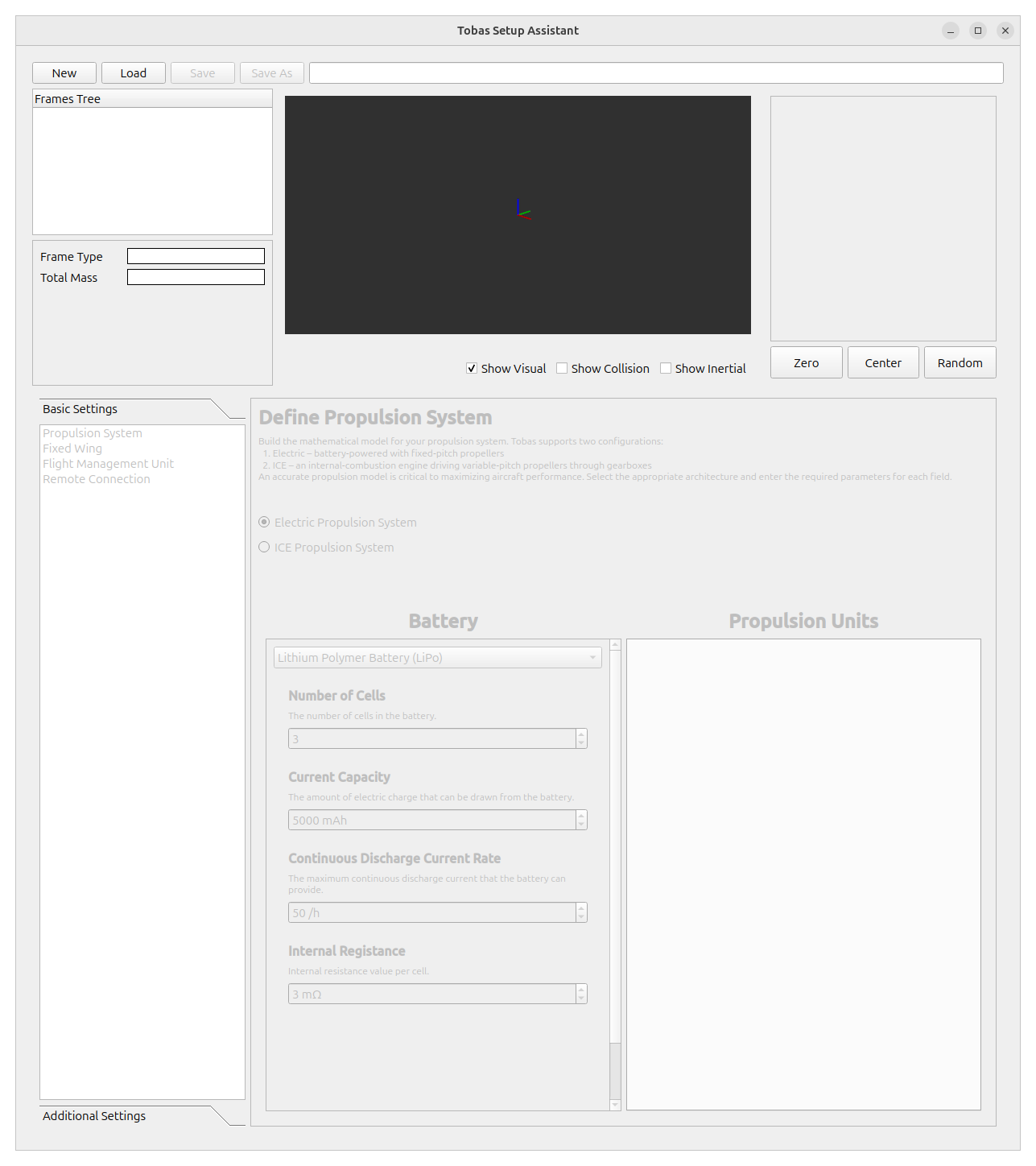
Loading the UADF
Click New, select /opt/tobas/share/tobas_description/urdf/f450.uadf in the file dialog, and click Open.
The airframe will then appear in the model view, and each settings page will be enabled.
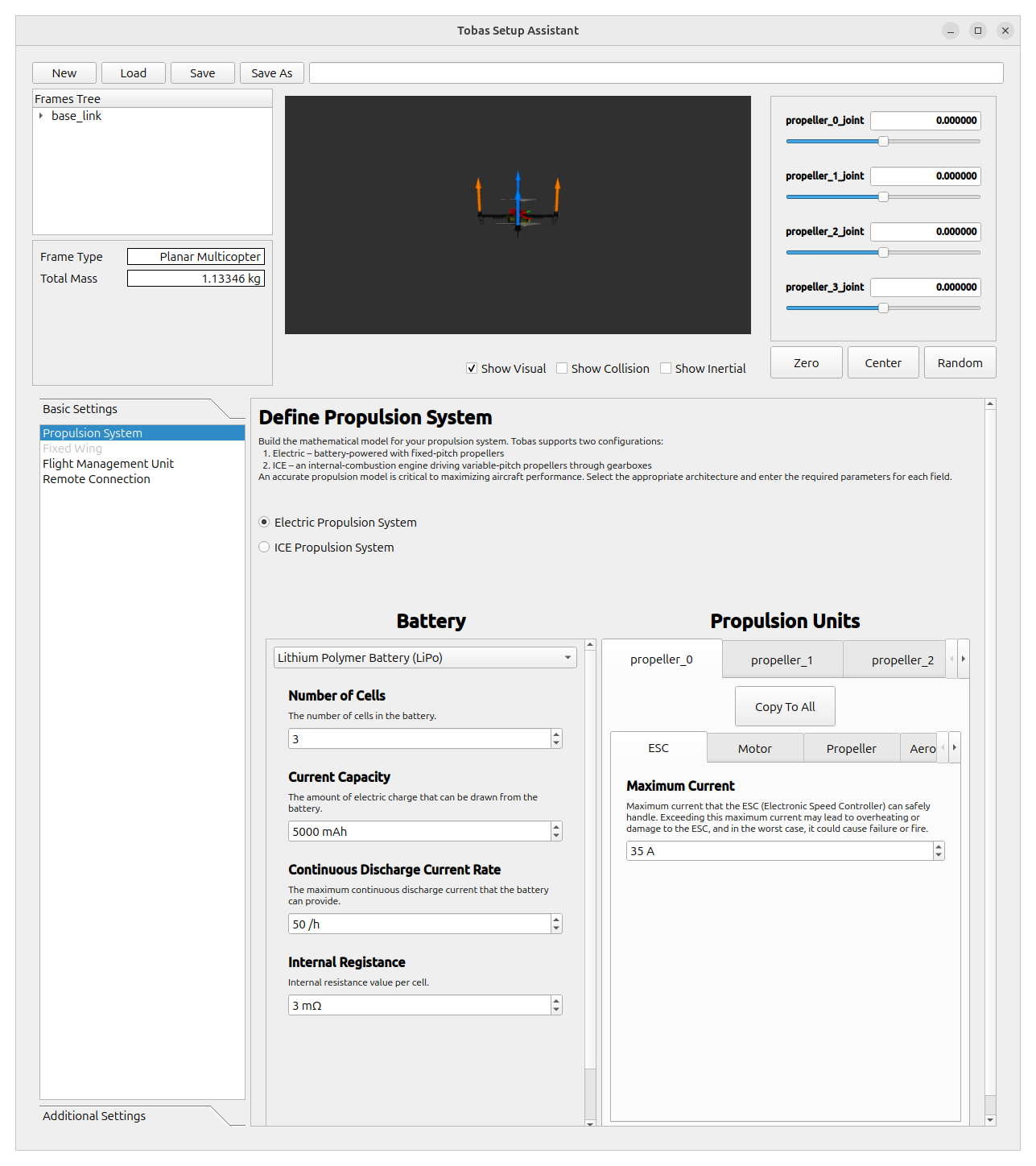
Propulsion System
Configure the propulsion system.
Since this airframe uses electric motors, leave Electric Propulsion System checked.
Battery
Configure the battery settings. Check the battery specifications and enter appropriate values for each item.
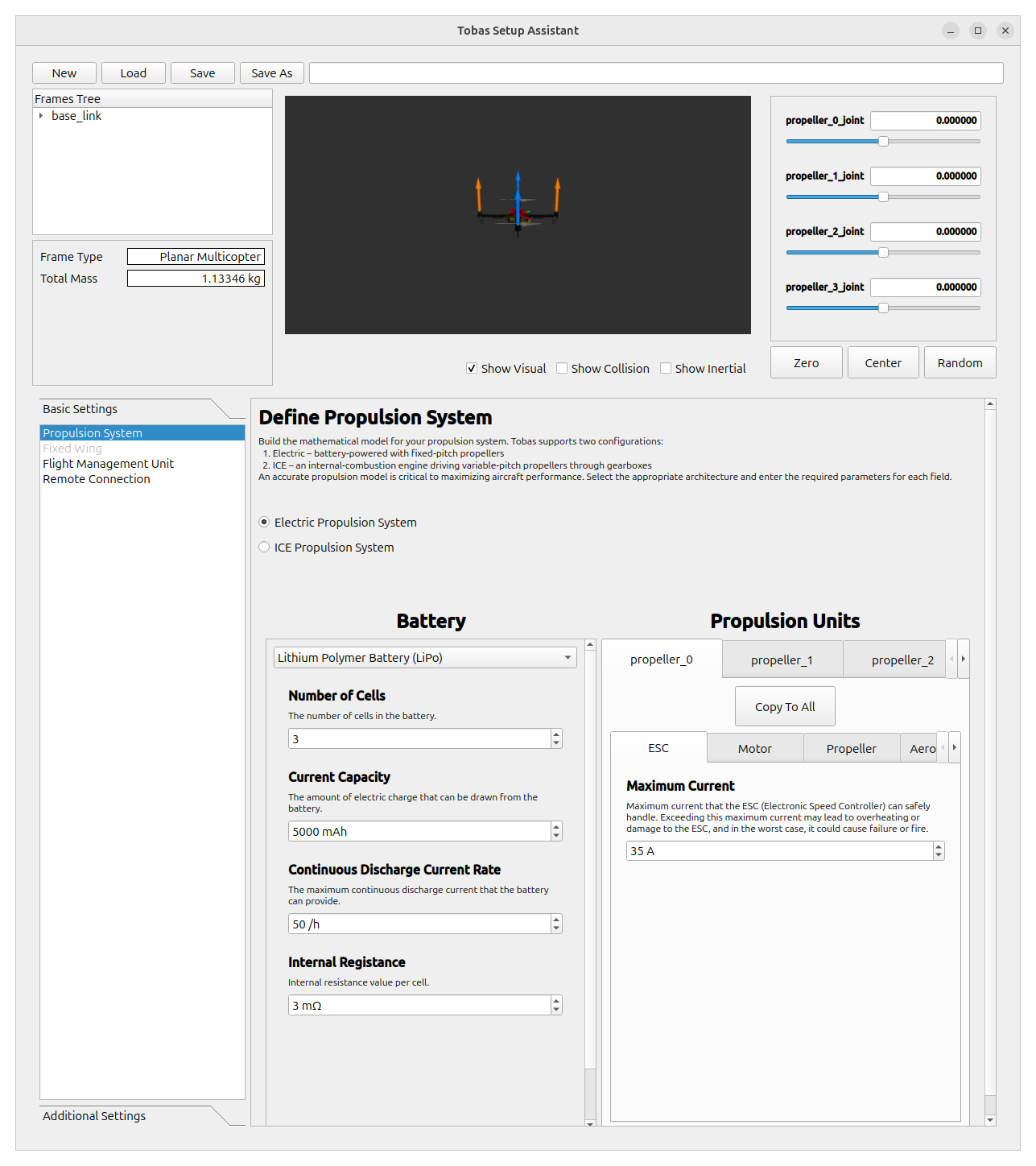
Propulsion Units
Configure each propulsion unit.
First, configure the propeller_0 link.
Check the specifications of each component and enter appropriate values for ESC, Motor, and Propeller.
Tip
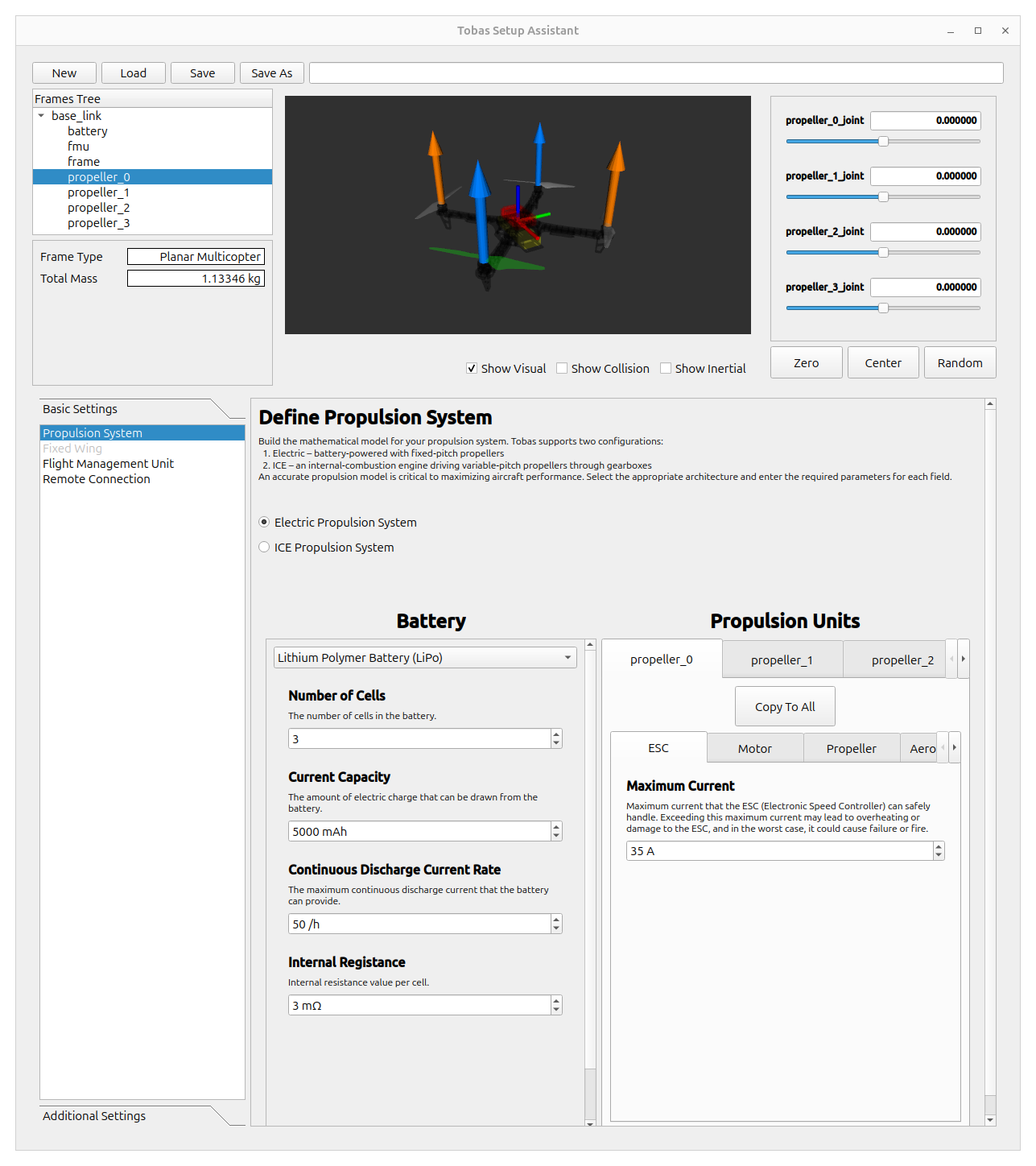
If you are not sure which propeller on the airframe corresponds to the displayed link name,
click the link name from Frame Tree in the upper-left corner of the screen to highlight it in the model view.
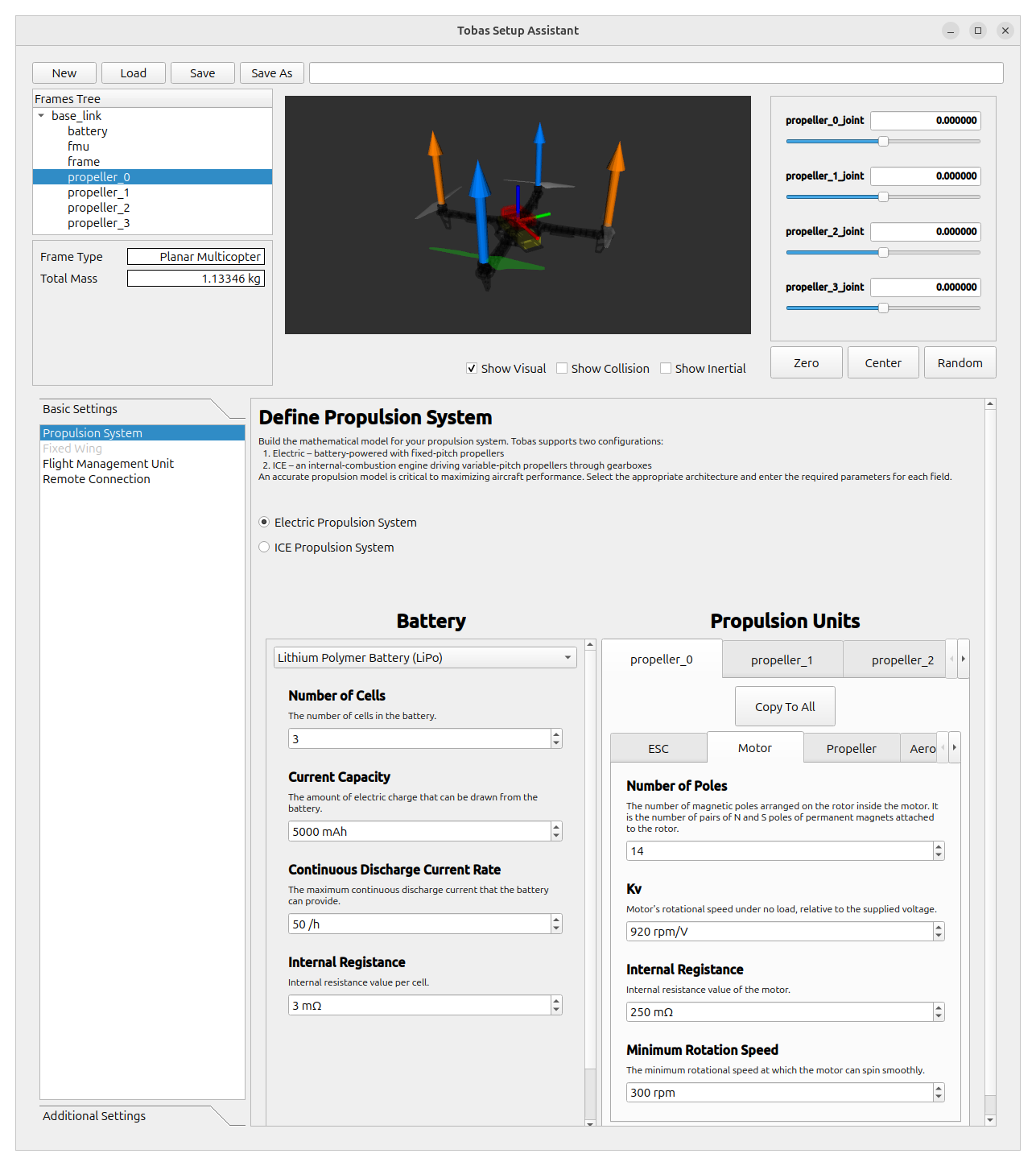
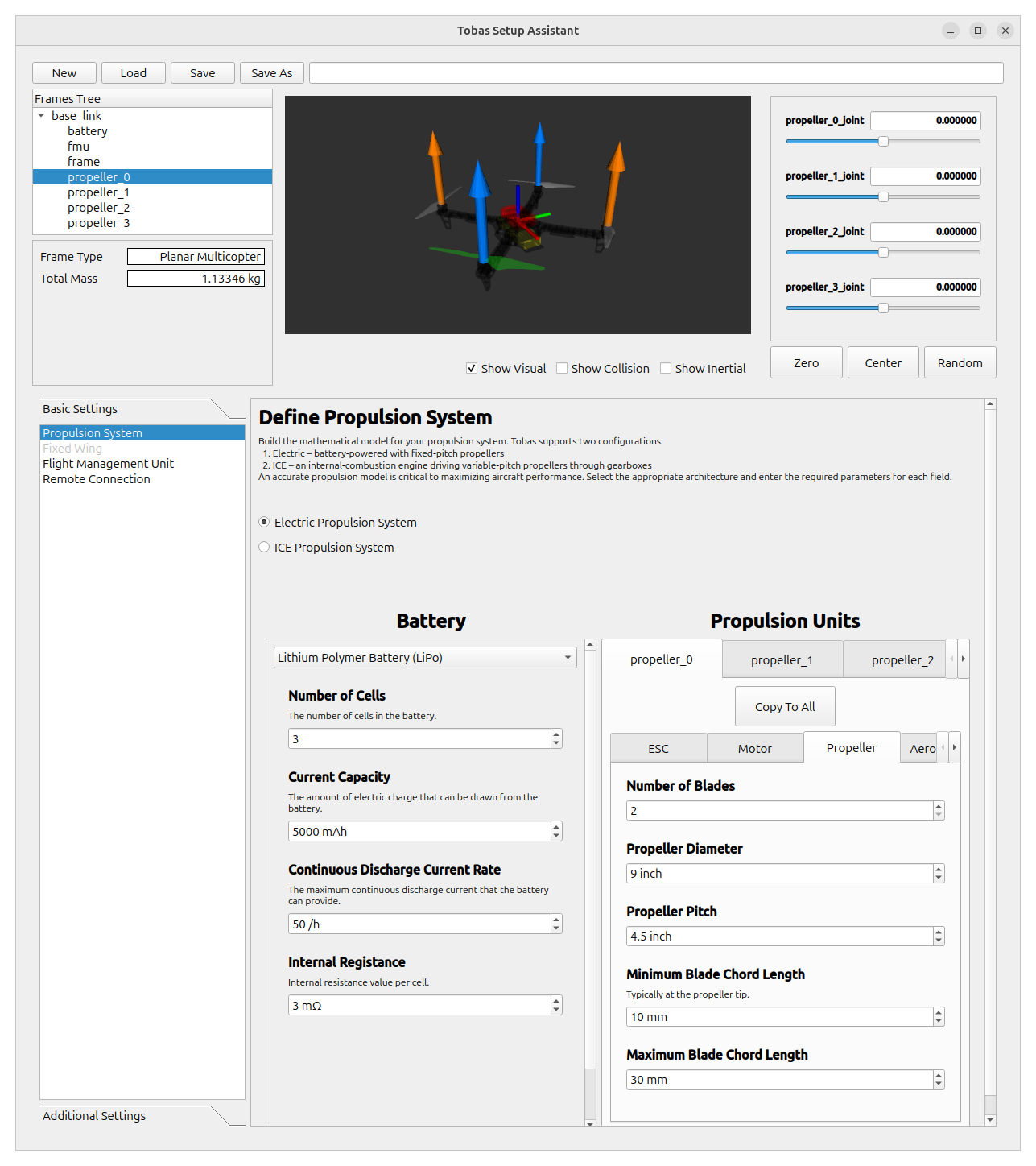
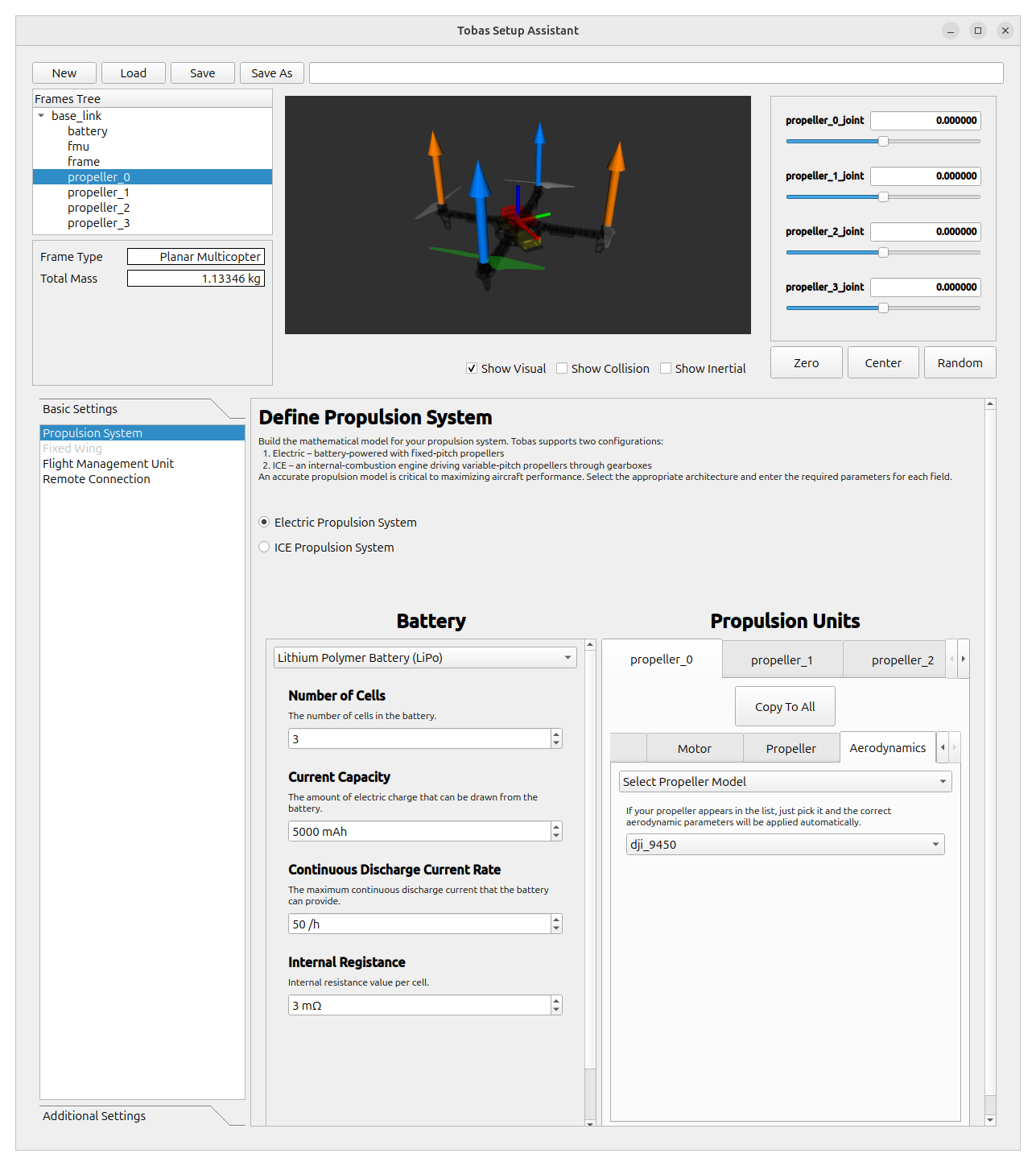
In Aerodynamics, configure the aerodynamic properties of the propeller.
You can choose from multiple configuration methods, but since the DJI 9450 propeller used here already has a prepared model, use that one.
Select Select Propeller Model from the first dropdown list, then select dji_9450 from the dropdown below it.
Since all four propulsion units on this airframe are identical, click Copy To All to copy the propeller_0 settings to the other three.
Make sure the propeller_0 settings are also reflected in the other tabs.
Hardware Interface
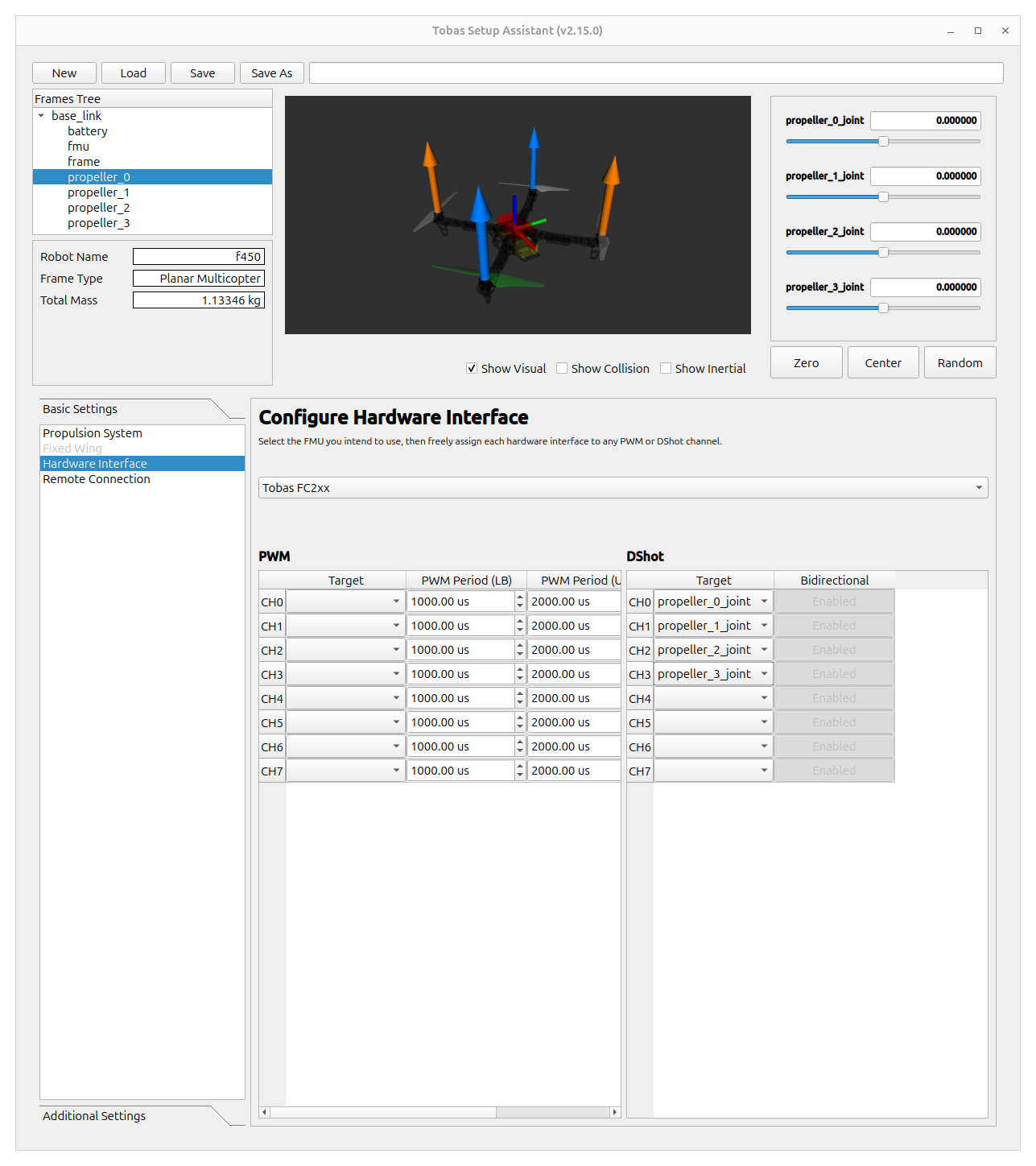
Configure the hardware connection settings.
Make sure Tobas FC2xx is selected,
then set the DShot channel appropriately for each of the four propulsion units.
Note
If you do not specify an interface here, for example when using a CAN-ESC, the hardware will not be driven as-is, so you will need to create your own ROS node to connect the hardware and the Tobas software.
Remote Connection
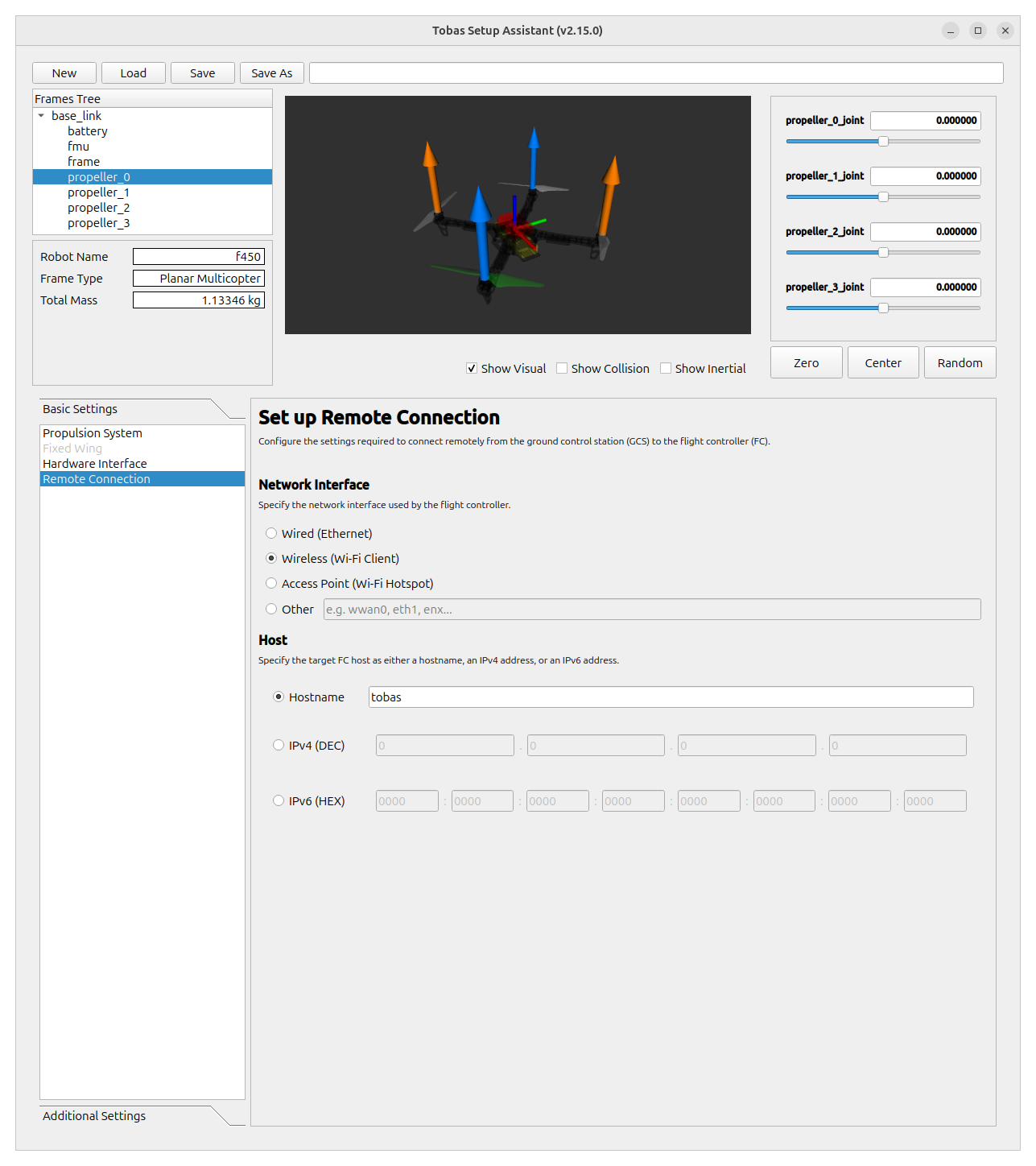
Configure the settings for remotely connecting from the ground station to the FC.
Network Interface
Specify the network interface that the FC uses to communicate externally.
In this tutorial, we use a pocket Wi-Fi device for communication between the FC and GCS, so select Wireless.
If you use wired LAN, select Wired.
If you use the Raspberry Pi's built-in access point without an external communication module, select Access Point.
For any other configuration, such as using a VPN interface tun0, select Other and specify the interface name directly.
Host
Configure the address used by the GCS to identify the FC on the LAN.
If the FC has a fixed IP address, you can use it directly, but in this tutorial we will use a convenient host name instead.
Select Hostname and enter the FC host name configured in Boot Device Configuration.
Saving the Project
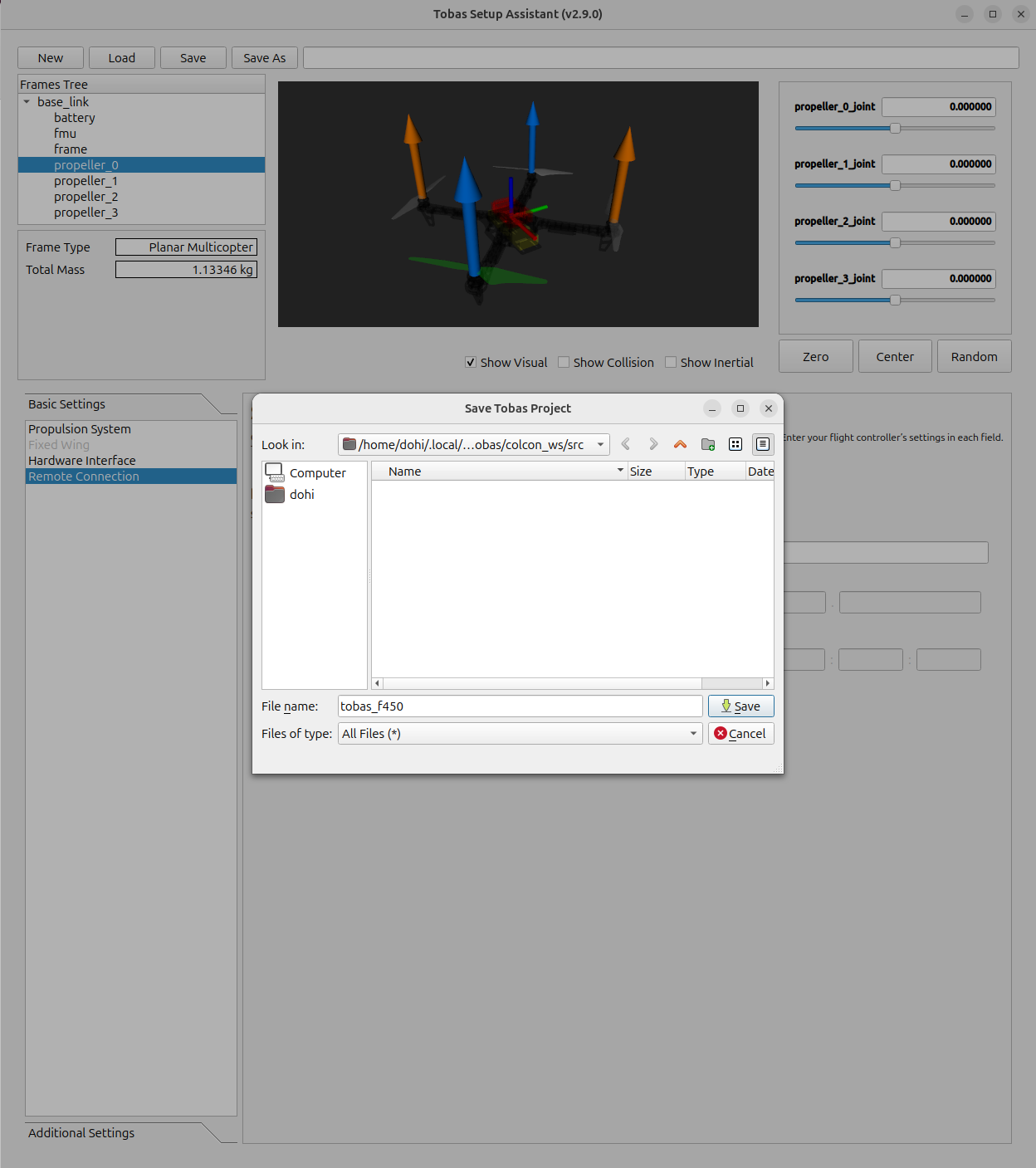
Click Save, then in the file dialog save it as tobas_f450.TBS under ~/.local/share/tobas/colcon_ws/src/.
Next Step
This completes the procedure. Close Setup Assistant. Next, assemble the actual airframe and set up the hardware.