Airframe Configuration
Use Tobas Setup Assistant to configure your aircraft. Tobas Setup Assistant is a GUI for creating the project folder needed to fly a drone with Tobas. The project folder contains all the information needed for flight, including aircraft mass properties, propeller aerodynamics, and motor electrical characteristics. To use Tobas Setup Assistant, you need a Universal Aircraft Description Format (UADF) file describing your aircraft. For details about UADF, see What is UADF.
Preparation
This tutorial uses a DJI F450, a conventional quadcopter. Its components are:
- Flight controller: Tobas FC201
- Power module: Tobas PM201
- Frame: DJI F450 Frame
- Motors: A2212 920KV (CW x 2, CCW x 2)
- Propellers: DJI 9450 (CW x 2, CCW x 2)
- ESC: Flycolor Raptor5 35A x 4
- Battery: HRB 3S 5000mAh 50C
- GNSS antenna: TOPGNSS TOP901
- RC receiver: Futaba R2000SBM
You normally need to create a UADF for your aircraft, but this tutorial uses one that is already provided.
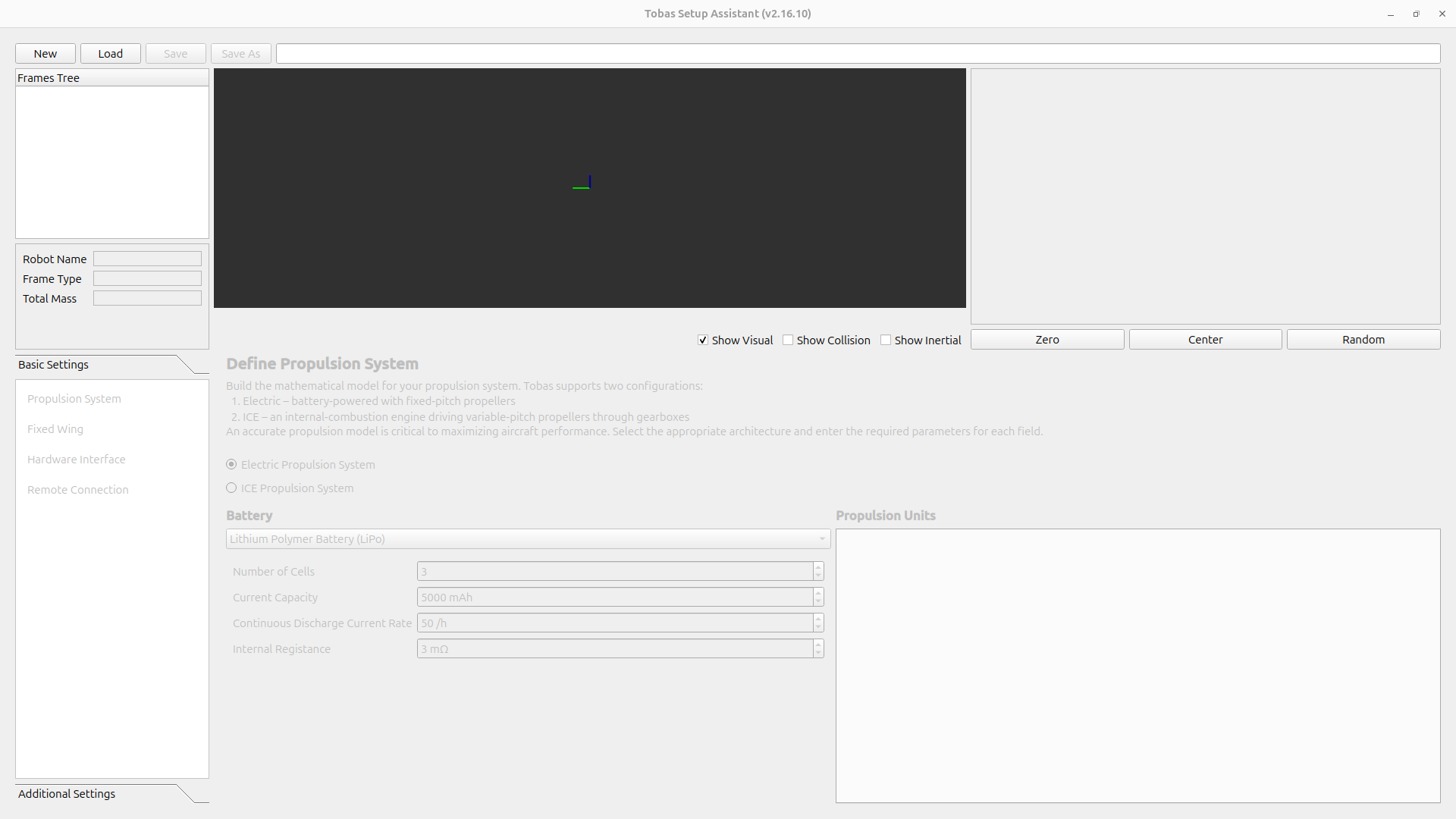
Launching the Assistant
Run the following commands in a terminal to launch Tobas Setup Assistant.
$ source /opt/ros/jazzy/setup.bash
$ ros2 launch tobas_setup_assistant setup_assistant.launch.py
Loading the UADF
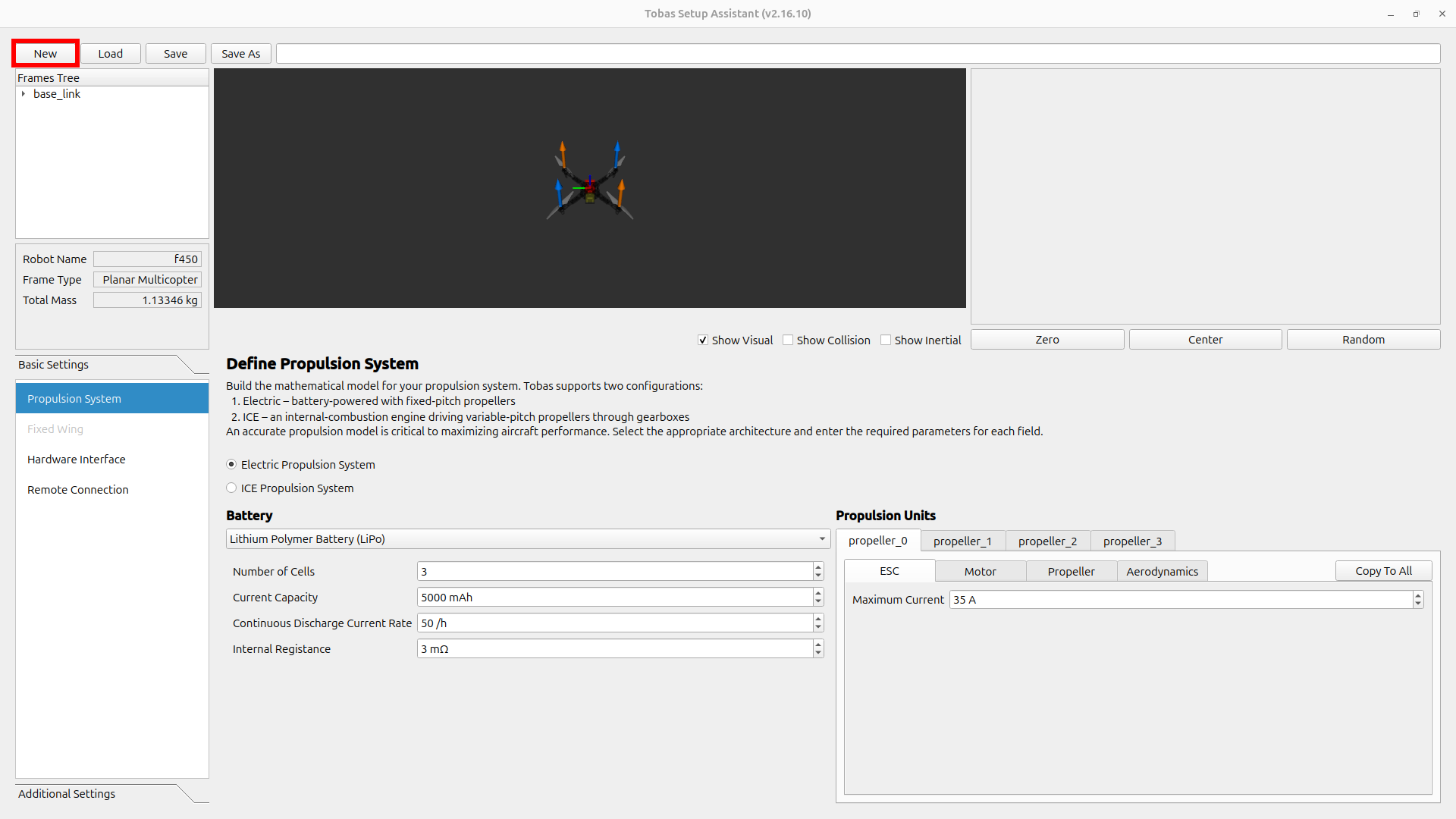
Click New, select /opt/ros/jazzy/share/tobas_description/urdf/f450.uadf in the file dialog, then click Open.
The aircraft appears in the model view and the configuration pages become available.
Propulsion System
Configure the propulsion system.
Since this aircraft is electrically powered, leave Electric Propulsion System checked.
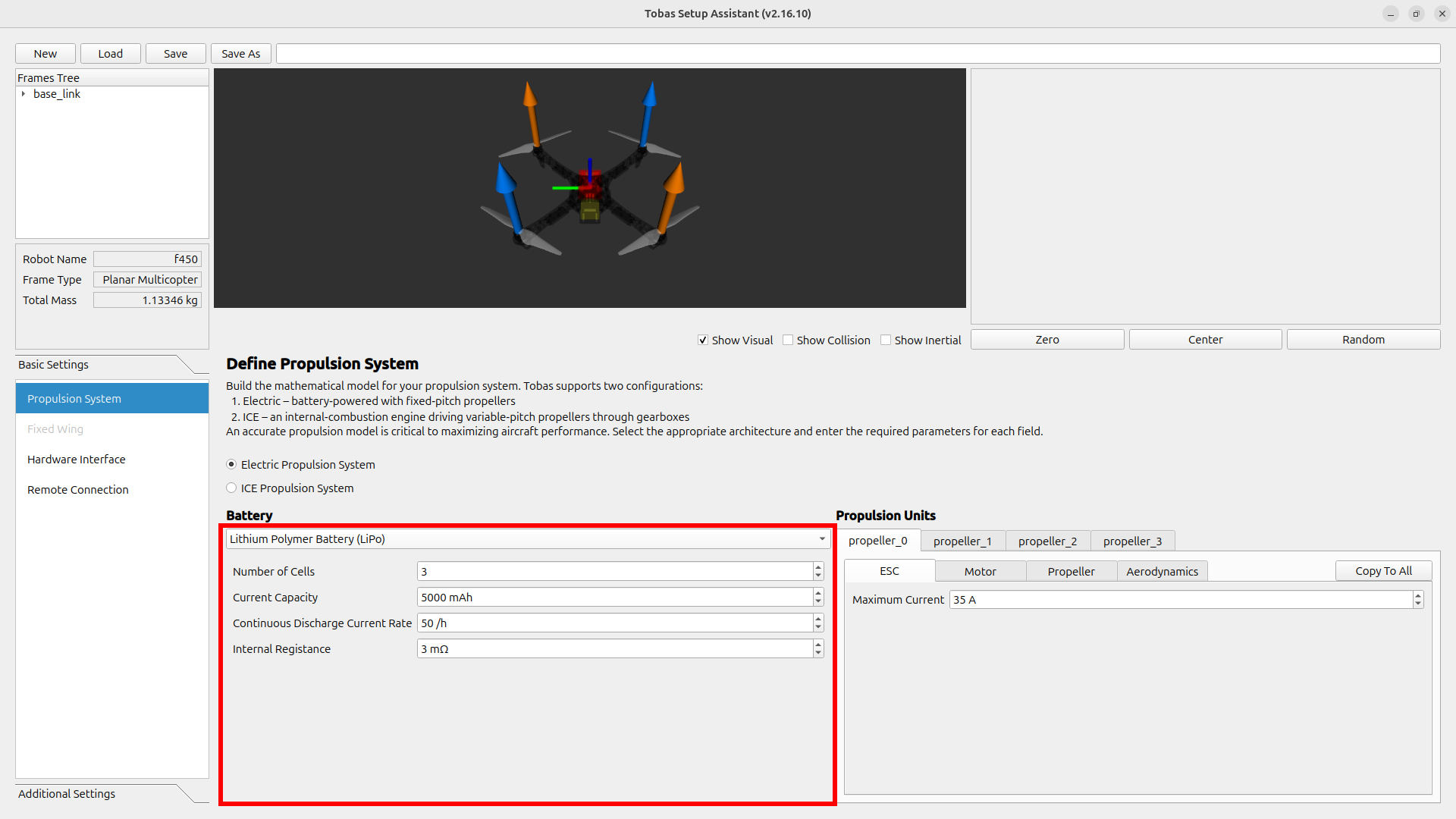
Battery
Configure the battery. Check the battery specifications and enter the appropriate values in each field.
Propulsion Units
Configure each propulsion unit.
Start with the propeller_0 link.
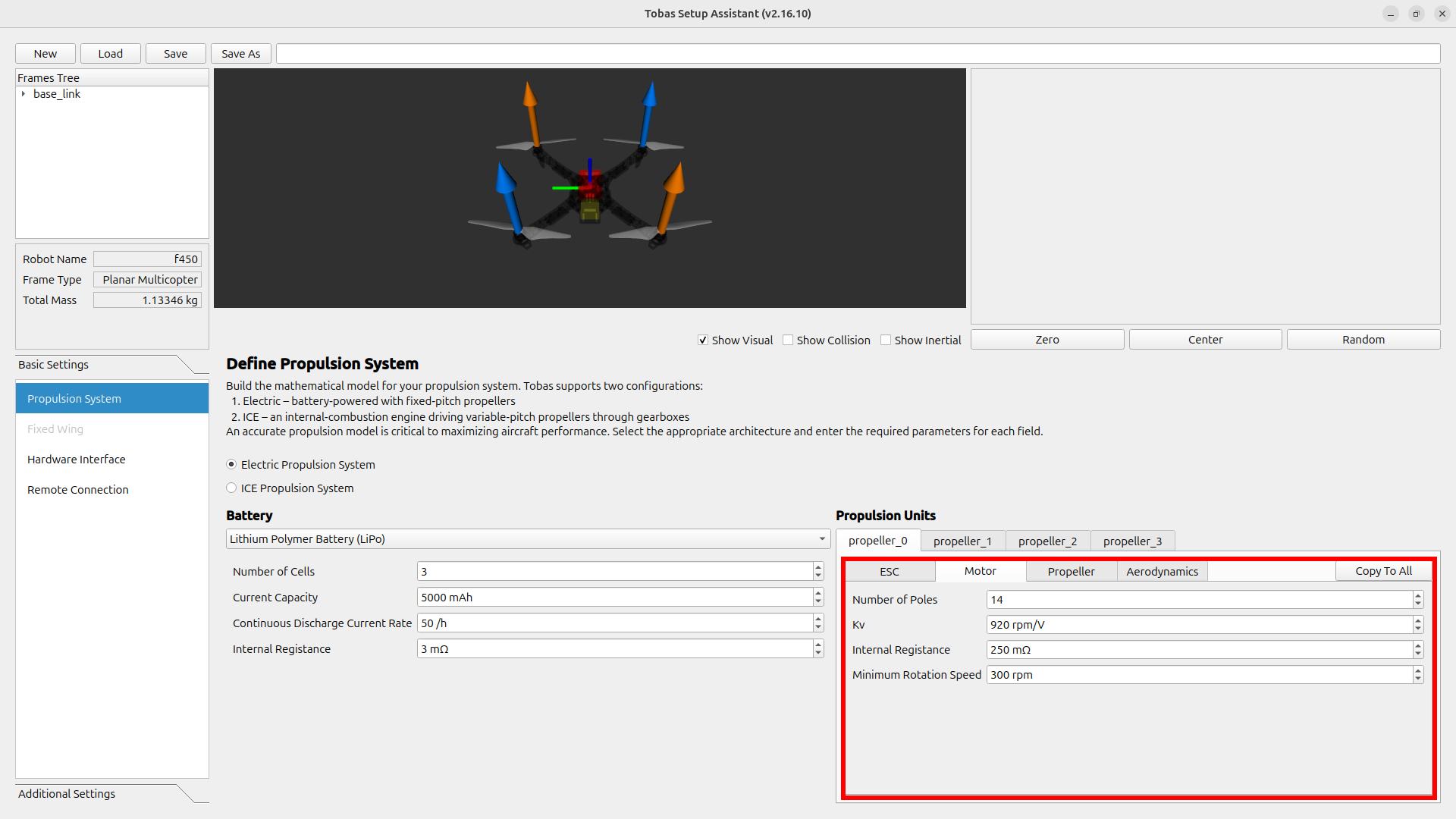
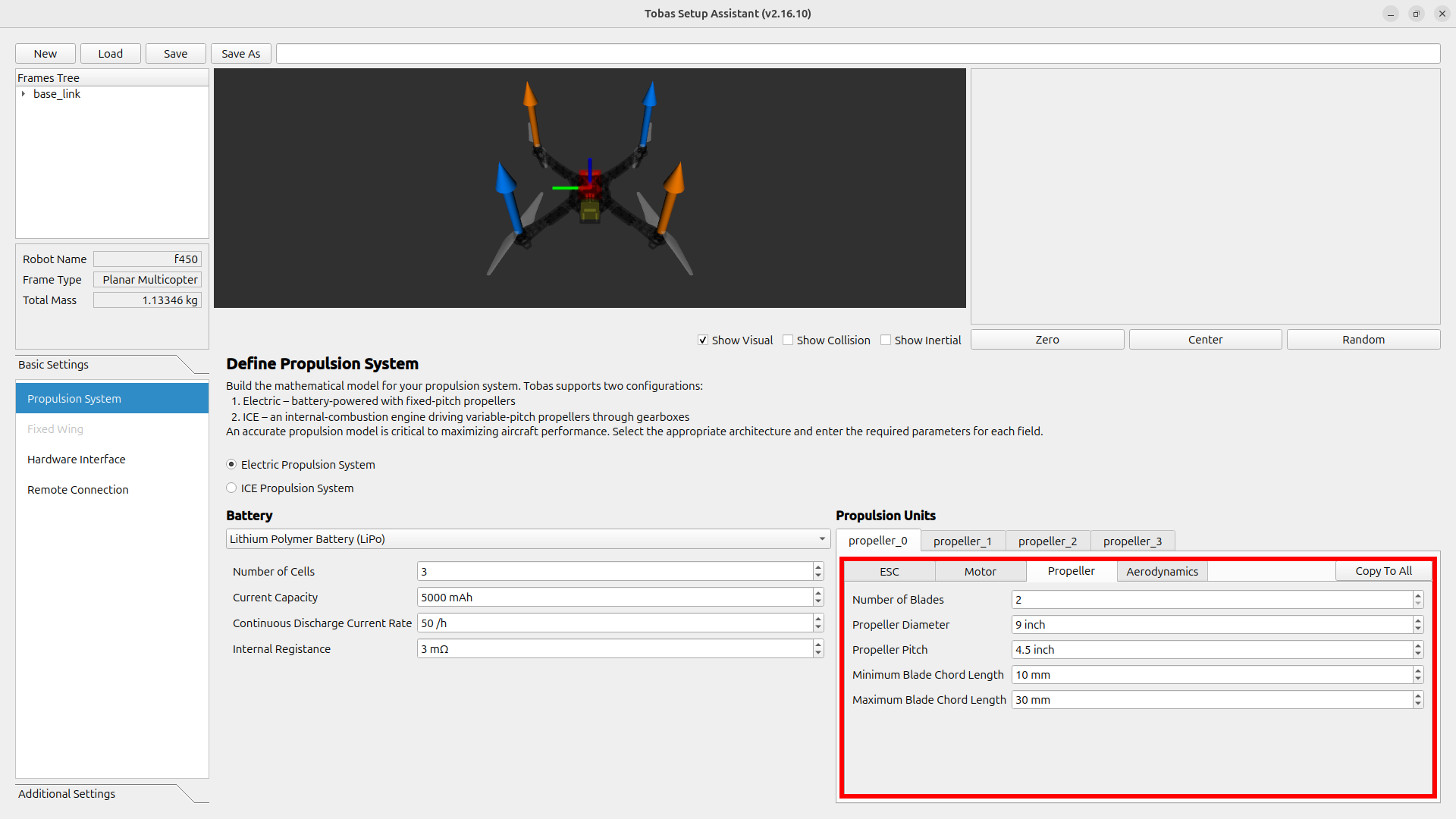
Check each component's specifications and enter the appropriate values under ESC, Motor, and Propeller.
Tip
If you are unsure which propeller corresponds to a displayed link name,
click the link name in the Frame Tree at the upper left to highlight it in the model view.
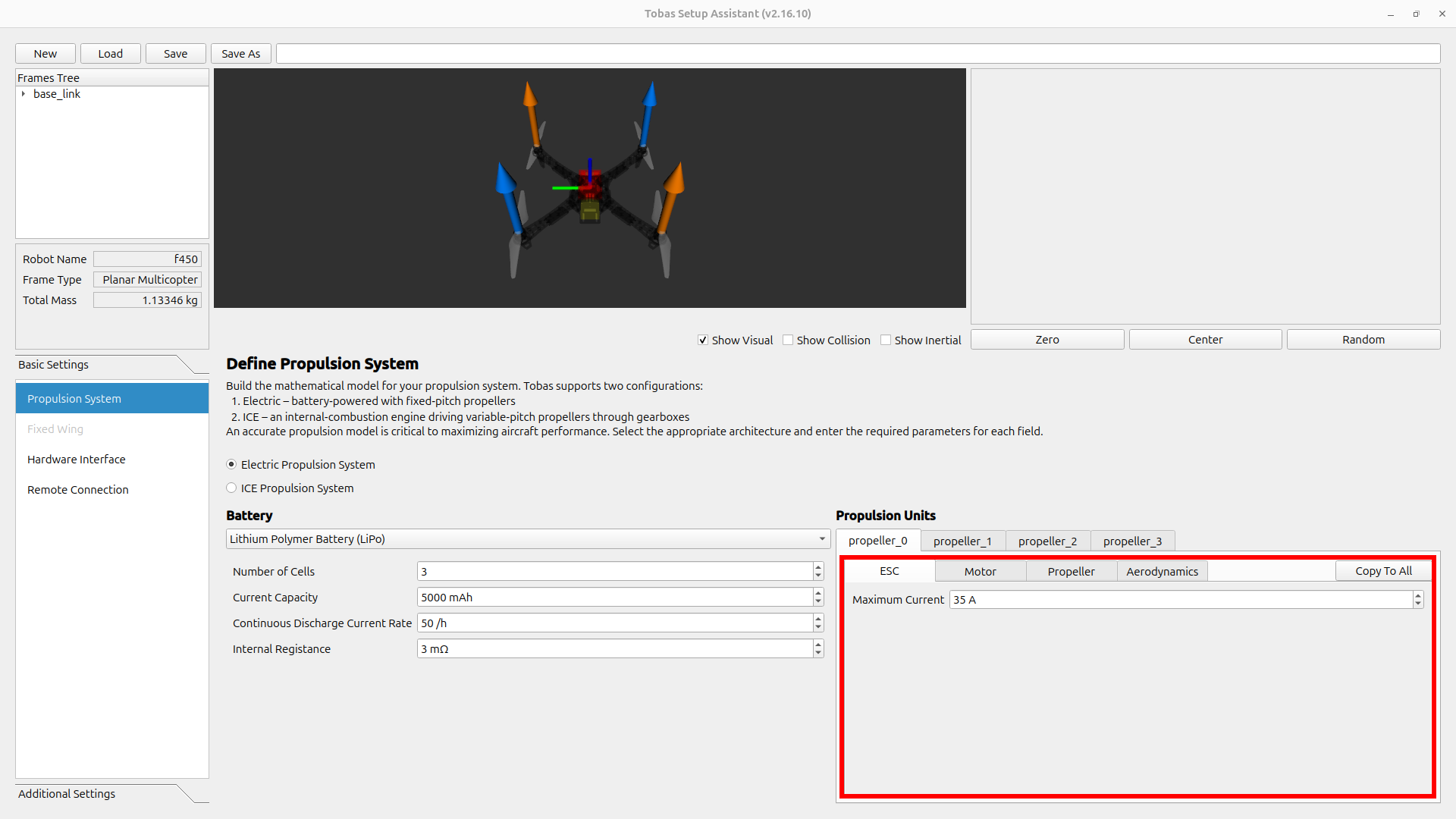
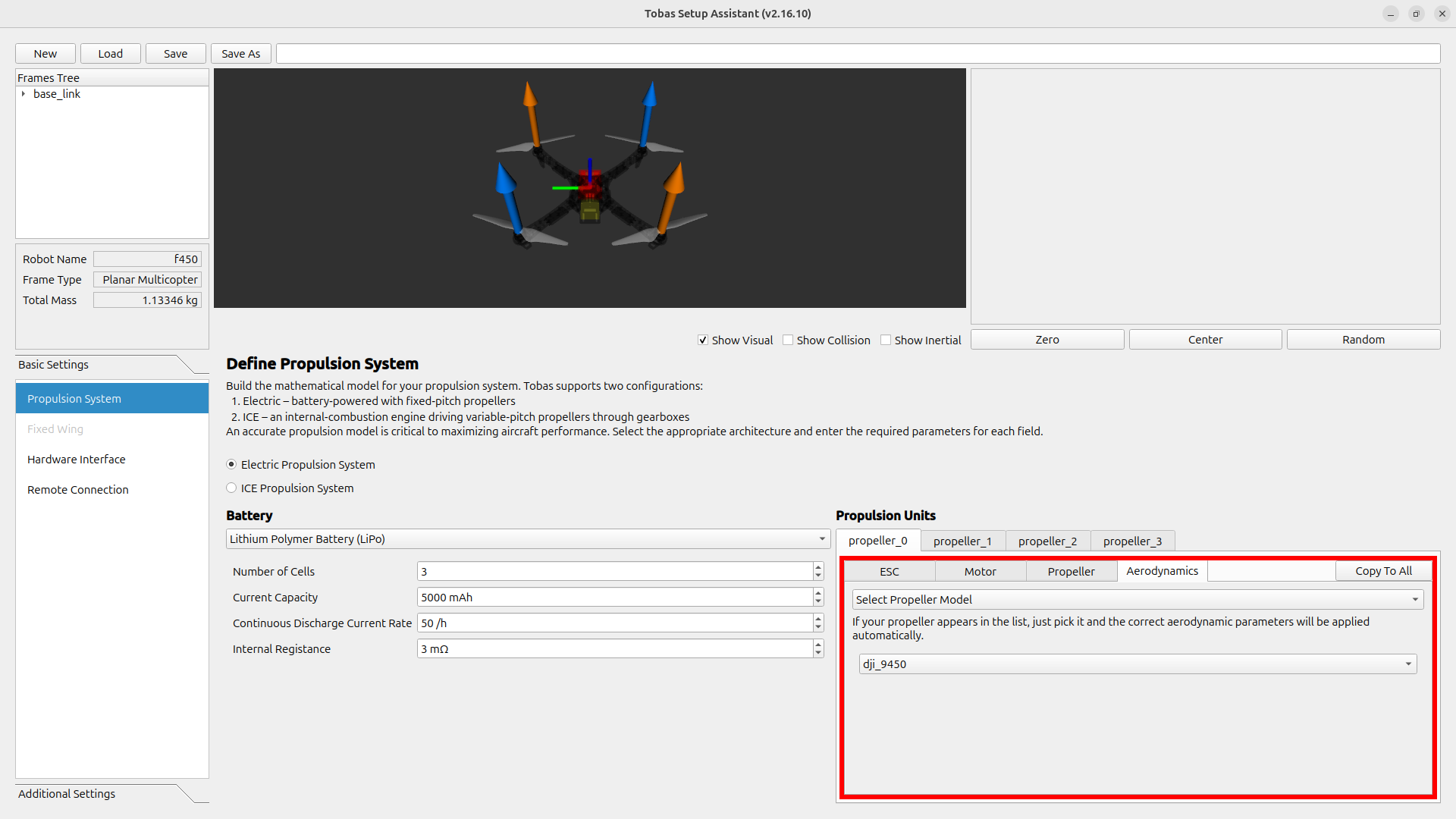
Use Aerodynamics to configure the propeller's aerodynamic characteristics.
Several configuration methods are available. For the DJI 9450 propeller used here, a predefined model is provided.
Select Select Propeller Model from the first list, then select dji_9450 from the list below it.
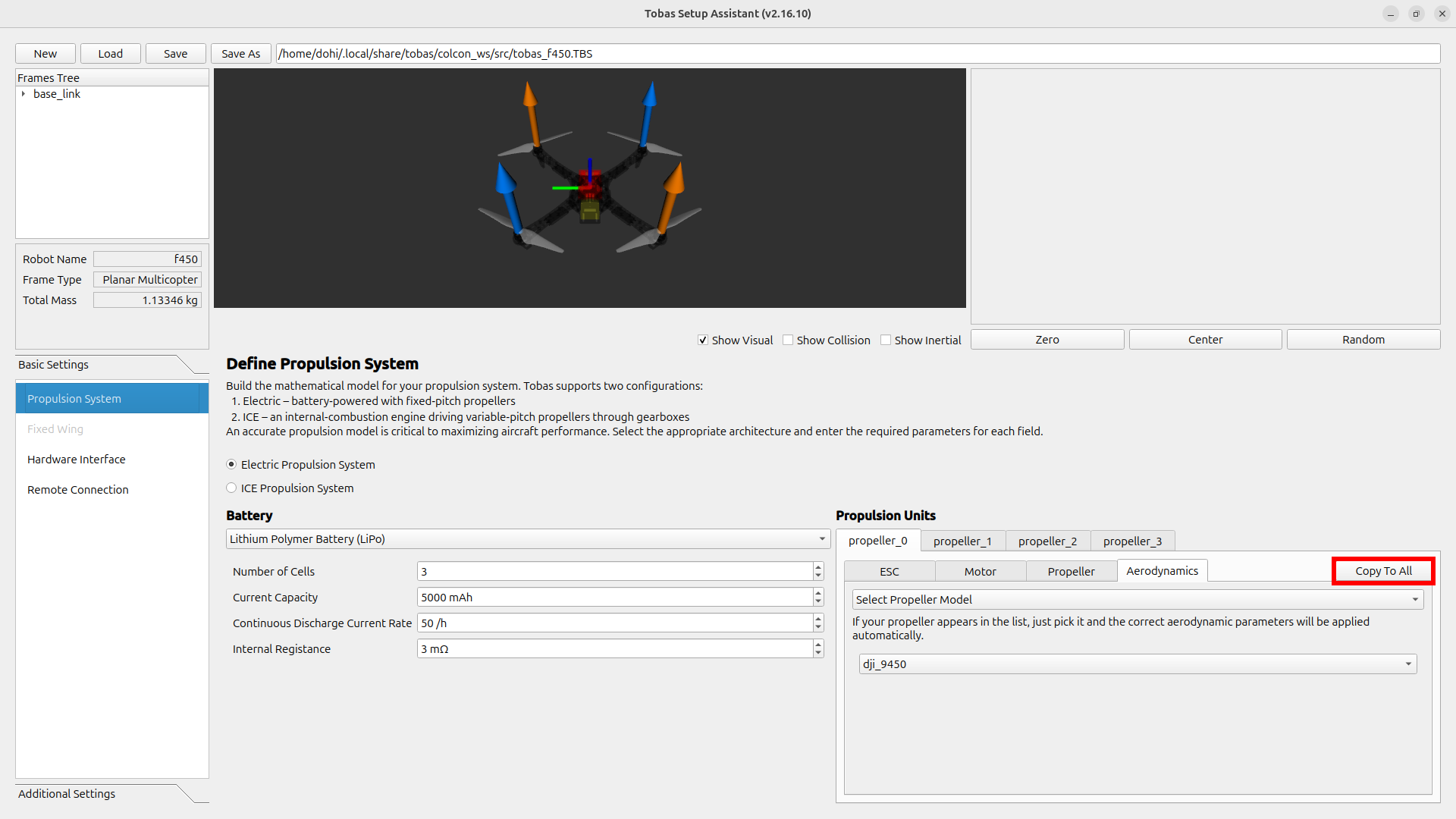
All four propulsion units on this aircraft are identical, so click Copy To All to copy the propeller_0 settings to the other three units.
Confirm that the propeller_0 settings are reflected in the other tabs.
Hardware Interface
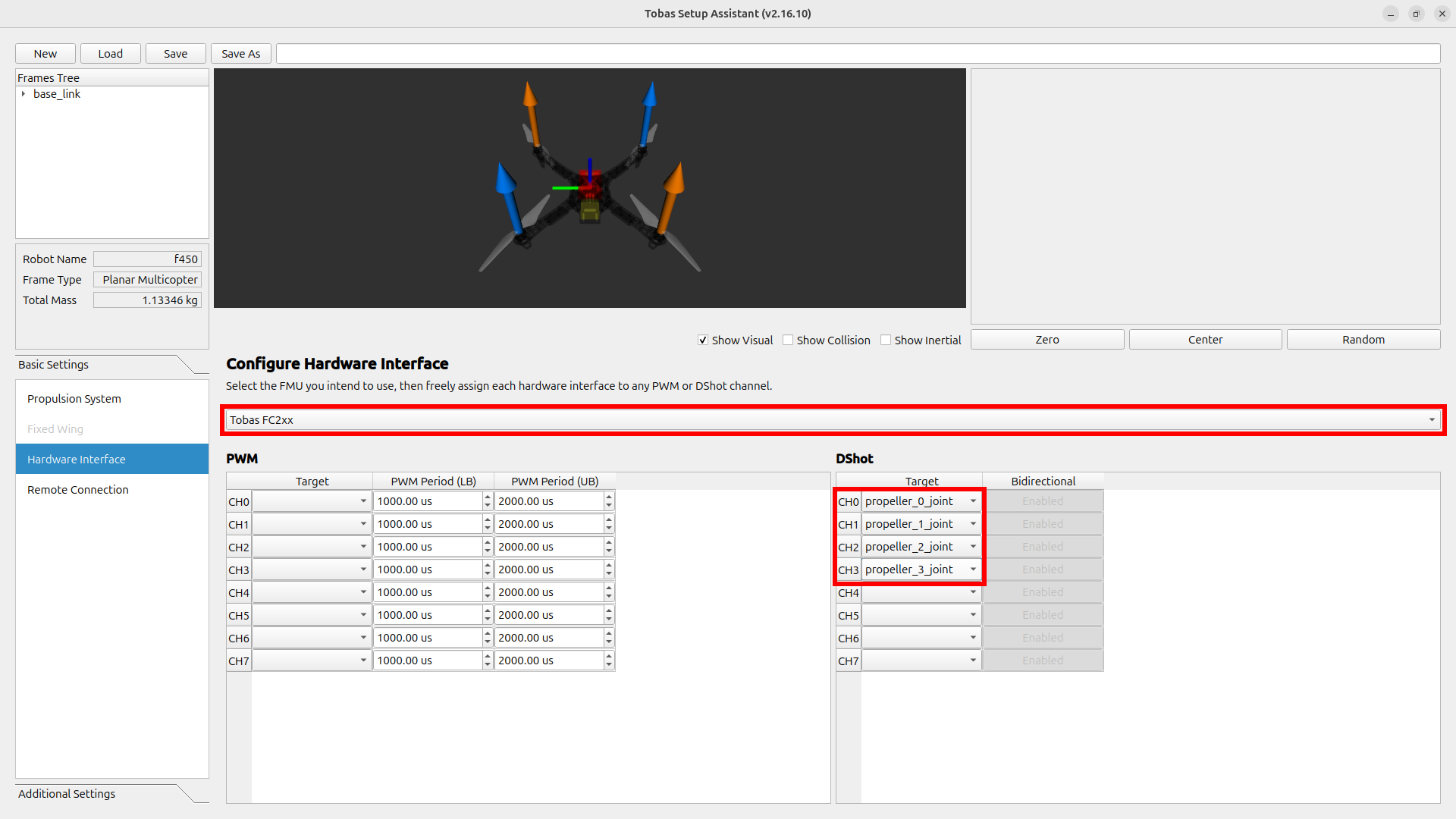
Configure the hardware connections.
Make sure Tobas FC2xx is selected,
then assign the appropriate DShot channel to each of the four propulsion units.
Note
If you do not specify an interface here, for example when using CAN ESCs, the hardware will not be driven by the default configuration. You will need to write your own ROS node to connect the hardware to the Tobas software.
Remote Connection
Configure remote access from the ground station to the FC.
Network Interface
Specify the network interface the FC uses to communicate with external devices.
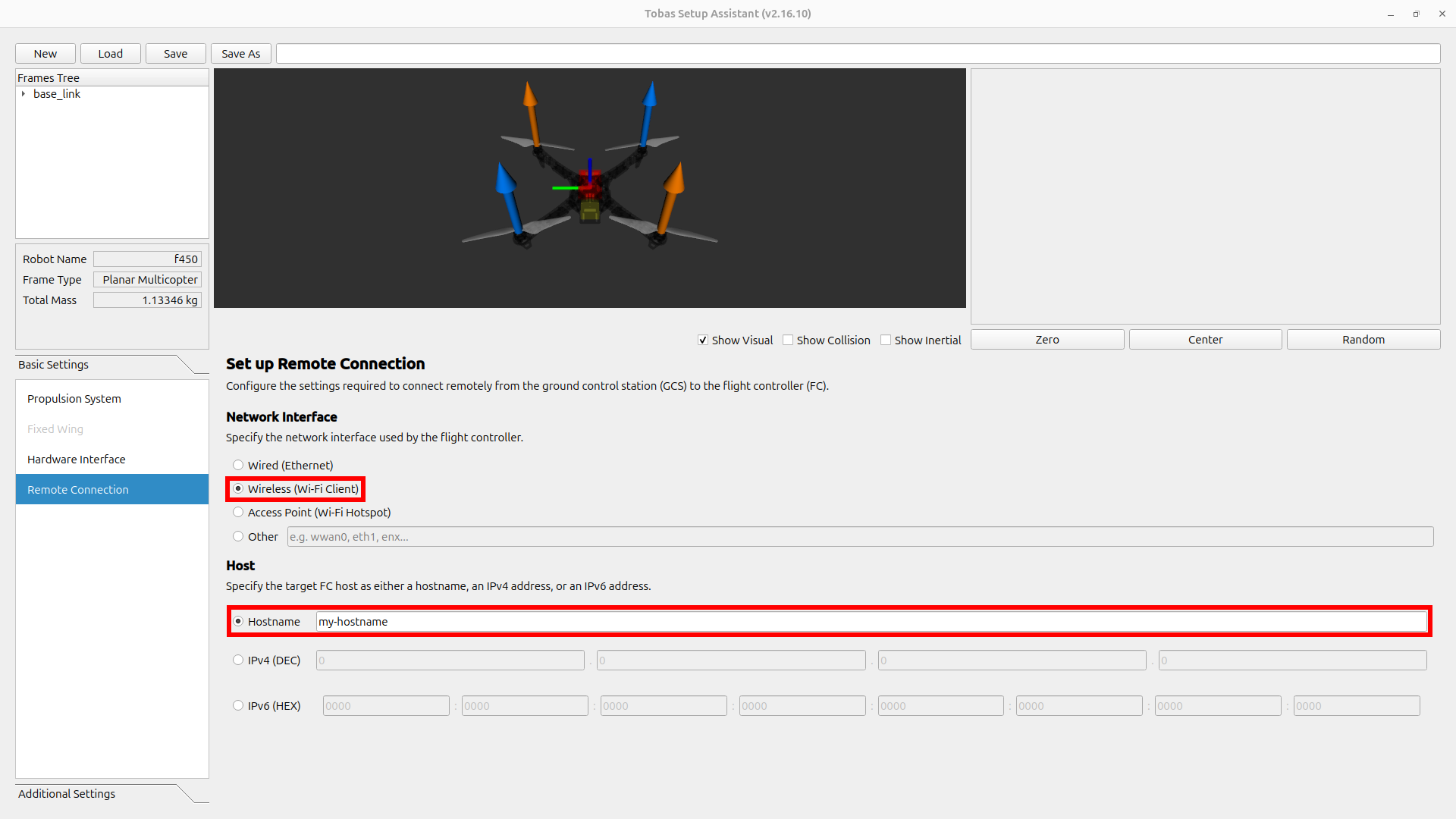
This tutorial uses a portable Wi-Fi router for communication between the FC and GCS, so select Wireless.
Select Wired if you use wired Ethernet.
Select Access Point if you use the Raspberry Pi's built-in access point without an external communication module.
For other configurations, such as a VPN interface named tun0, select Other and enter the interface name directly.
Host
Configure the address the GCS uses to identify the FC on the LAN.
You can use a static IP address directly if one is configured, but this tutorial uses a hostname for convenience.
Select Hostname and enter the FC hostname configured in Boot Device Configuration.
Saving the Project
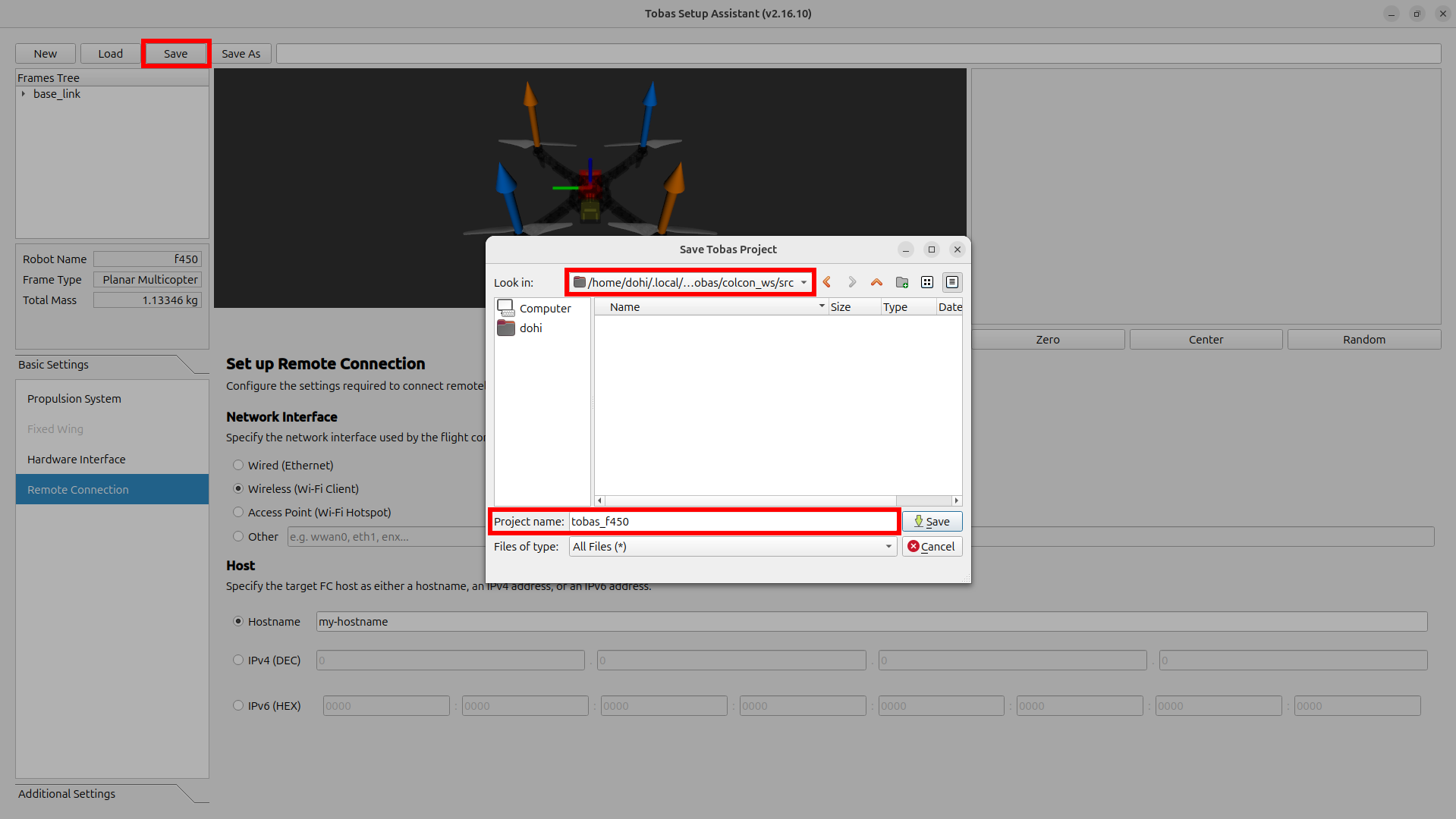
Click Save and save the project as tobas_f450.TBS under ~/.local/share/tobas/colcon_ws/src/ in the file dialog.
Next Steps
Configuration is now complete. Close Setup Assistant. Next, assemble the aircraft and set up the hardware.